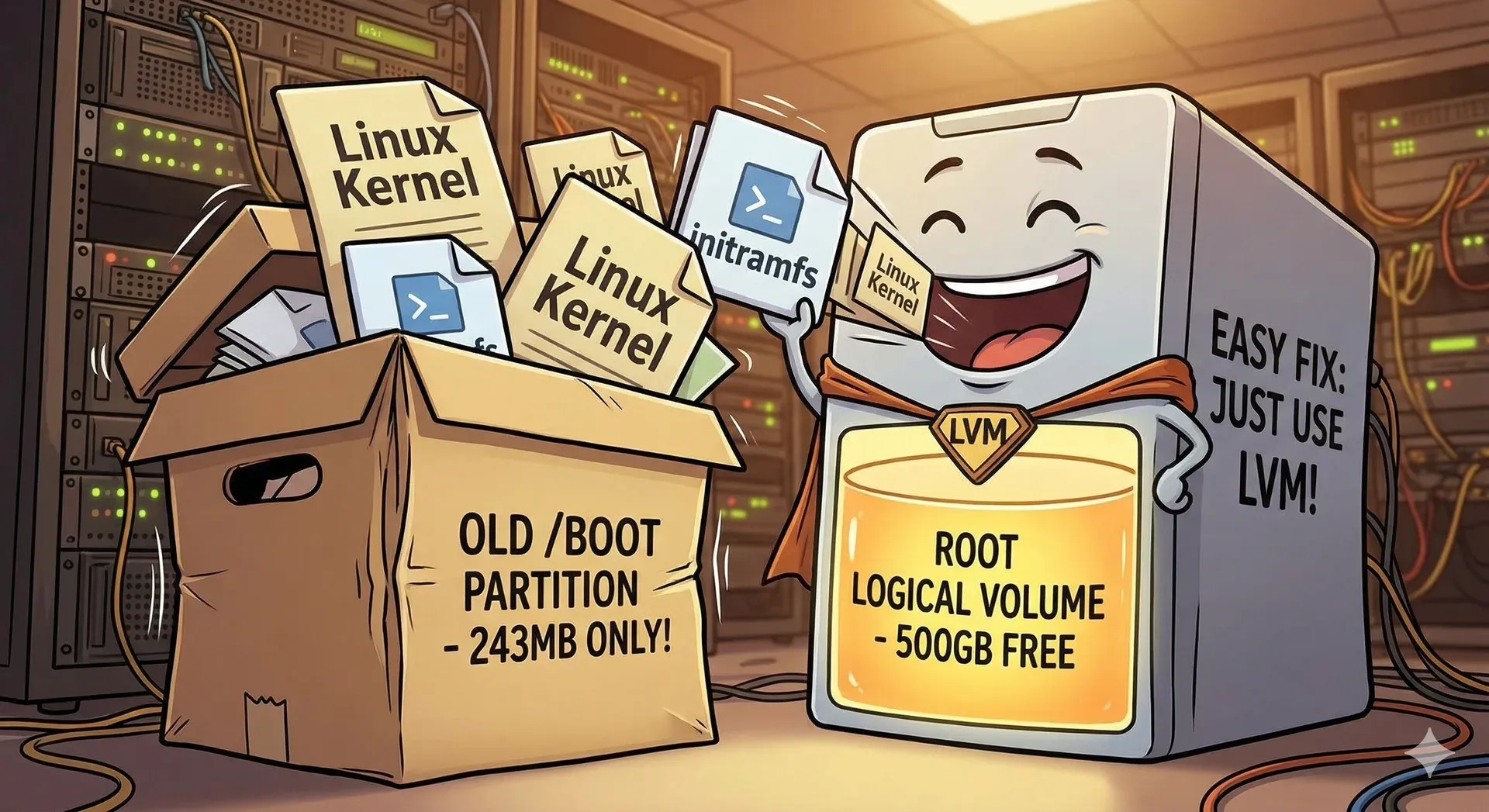
If you’ve been running an Ubuntu server for a while, especially one that was set up a few years ago, there’s a good chance you’ve encountered the dreaded “no space left on device” error when trying to install a kernel update. This is almost always because your /boot partition is too small.
I recently hit this on my fitlet home server, which runs Ubuntu 22.04 LTS with LVM. The original Ubuntu installer had created a 243MB /boot partition — which was fine back in the day, but modern kernels and their initramfs images have grown significantly. With just two kernels installed, /boot was at 96% capacity:
$ df -h /boot
Filesystem      Size  Used Avail Use% Mounted on
/dev/sdb1       234M  211M   11M  96% /boot
One more kernel update and the system would be unable to apply security patches. Not ideal for a server running production workloads!
Why does /boot exist as a separate partition?
Historically, GRUB (the Linux bootloader) couldn’t read complex filesystems like LVM logical volumes or LUKS-encrypted disks. The solution was to put the kernel and initramfs on a simple, small partition that GRUB could definitely read — hence the separate /boot partition, typically formatted as ext2.
The good news is that GRUB2 has supported reading LVM volumes for quite some time now. If your root filesystem is on an unencrypted LVM logical volume (as mine is), there’s no longer any need for a separate /boot partition at all.
Why not just resize the partition?
My first instinct was to simply make the partition bigger. But looking at the disk layout, this turned out to be impractical:
$ sudo fdisk -l /dev/sdb
Device     Boot  Start        End    Sectors   Size Id Type
/dev/sdb1  *      2048     499711     497664   243M 83 Linux
/dev/sdb2       501758 1953523711 1953021954 931.3G  5 Extended
/dev/sdb5       501760 1953523711 1953021952 931.3G 8e Linux LVM
/boot (sdb1) sits at the very start of the disk, and the LVM partition (sdb2/sdb5) immediately follows it. To grow /boot I would need to move the start of the LVM partition to a higher sector — which means physically relocating all the data on the LVM physical volume. This would require migrating all LVM data to another disk, repartitioning, and migrating it back. A complex, risky, and time-consuming operation for what should be a straightforward fix.
The better approach, which I stumbled upon after a discussion with Claude: merge /boot into the root logical volume
Since GRUB2 can boot from LVM, the simplest solution is to eliminate the separate /boot partition entirely and let /boot live on the root logical volume, which in my case had over 500GB of free space.
Here’s how I did it.
Prerequisites
Before starting, I verified the following:
- GRUB2 with LVM support — the
lvm.modmodule was present in/boot/grub/i386-pc/ - Unencrypted root filesystem — my root LV uses plain ext4 on LVM, no LUKS. If your root is encrypted with LUKS, this approach won’t work without additional configuration, as GRUB2’s LUKS support is more limited
- BIOS/Legacy boot — my system uses legacy BIOS boot, not UEFI. The same approach works for UEFI systems, but the specific GRUB commands may differ slightly
- A USB live boot media — essential as a safety net in case something goes wrong
You can check these with:
# Check for GRUB LVM module
ls /boot/grub/i386-pc/lvm.mod  # For BIOS systems
ls /boot/grub/x86_64-efi/lvm.mod  # For UEFI systems

# Check if root is on LVM (not LUKS)
lsblk -f

# Check boot mode
[ -d /sys/firmware/efi ] && echo 'UEFI' || echo 'BIOS/Legacy'
Step 1: Free up space by removing old kernels
Before doing anything risky, I freed up some breathing room by removing the old kernel that was no longer in use:
# Check which kernel is currently running
$ uname -r
6.8.0-101-generic

# List installed kernels
$ dpkg --list 'linux-image-*' | grep '^ii'
ii  linux-image-6.8.0-101-generic  ...
ii  linux-image-6.8.0-60-generic   ...

# Remove the old kernel (NOT the running one!)
$ sudo apt purge linux-image-6.8.0-60-generic \
    linux-modules-6.8.0-60-generic \
    linux-modules-extra-6.8.0-60-generic
$ sudo apt autoremove --purge
$ sudo update-grub
This brought /boot down from 96% to 51%, which gave me the headroom I needed to proceed safely.
Step 2: Create backups
Never modify boot configuration without a safety net:
# Backup /boot contents
$ sudo cp -a /boot /root/boot-backup

# Save current fstab
$ sudo cp /etc/fstab /root/fstab-before.txt

# Record disk layout for reference
$ lsblk -f | sudo tee /root/disk-layout-before.txt
Step 3: Copy /boot to the root logical volume
The key insight here is that when /boot is mounted from its own partition, it hides whatever /boot directory exists on the root filesystem. When we unmount the partition, the root filesystem’s /boot directory becomes visible — and that’s where we want our kernel files to live.
# Copy /boot to a staging area (while the partition is still mounted)
$ sudo cp -a /boot /root/boot-staging

# Unmount the /boot partition
$ sudo umount /boot

# /boot is now an empty directory on the root LV
# Copy the staged files into it
$ sudo bash -c 'cp -a /root/boot-staging/* /boot/'

# Verify the files are there
$ ls -la /boot/vmlinuz-* /boot/initrd.img-*
Note the use of sudo bash -c '...' — this is necessary because shell glob expansion (*) happens before sudo elevates privileges, and the staging directory is only readable by root.
Step 4: Update /etc/fstab
Comment out the /boot mount so it won’t be mounted from the partition on next boot:
$ sudo sed -i 's|^UUID=d559f39e-21b7-4655-8347-fe57a6e33426 /boot|# UUID=d559f39e-21b7-4655-8347-fe57a6e33426 /boot|' /etc/fstabReplace the UUID above with whatever UUID your /boot partition has. You can find it with blkid or by looking at your existing /etc/fstab.
Step 5: Reinstall GRUB
This is the critical step. Reinstalling GRUB ensures that the bootloader’s core image knows how to find /boot on the LVM logical volume:
$ sudo grub-install /dev/sdb
Installing for i386-pc platform.
Installation finished. No error reported.

$ sudo update-grub
Generating grub configuration file ...
Found linux image: /boot/vmlinuz-6.8.0-101-generic
Found initrd image: /boot/initrd.img-6.8.0-101-generic
done
You may see a warning like Couldn't find physical volume 'pv1' — this is a known cosmetic issue and does not affect functionality.
Step 6: Verify before rebooting
Before pulling the trigger on a reboot, verify that GRUB is configured correctly:
# Check that grub.cfg references the LVM root
$ grep 'set root=' /boot/grub/grub.cfg | head -3
set root='lvmid/CsJuKK-wJlB-...'

# Verify kernel files are accessible
$ ls -la /boot/vmlinuz-* /boot/initrd.img-*

# Verify GRUB LVM module is present
$ ls /boot/grub/i386-pc/lvm.mod
You should see set root='lvmid/...' in the GRUB config — this confirms GRUB knows to look for the kernel on an LVM volume.
Step 7: Reboot and verify
Take a deep breath, make sure your USB live boot media is to hand, and reboot:
$ sudo rebootAfter the system comes back up:
# Confirm the running kernel
$ uname -r
6.8.0-101-generic

# Check that /boot is on the root LV
$ df -h /boot
Filesystem                   Size  Used Avail Use%  Mounted on
/dev/mapper/fitlet--vg-root  901G  326G  530G  39%  /

# Confirm no separate /boot mount
$ mount | grep boot
# (no output — this is correct)
/boot now has access to the full root logical volume — 530GB of available space instead of 234MB.
Step 8: Clean up and prevent future issues
Remove the staging files:
$ sudo rm -rf /root/boot-stagingEnable automatic removal of old kernels in /etc/apt/apt.conf.d/50unattended-upgrades:
Unattended-Upgrade::Remove-Unused-Kernel-Packages "true";
Unattended-Upgrade::Remove-Unused-Dependencies "true";
These settings ensure that old kernels are automatically cleaned up after unattended upgrades, so you’ll never accumulate unnecessary kernel packages again.
Rollback plan
If the system fails to boot after the migration, here’s how to recover using a USB live boot media:
- Boot from the live USB
- Open a terminal and mount the relevant filesystems:
$ sudo mount /dev/sdb1 /mnt                        # The old /boot partition
$ sudo mount /dev/mapper/fitlet--vg-root /mnt/root # The root LV- Restore the original fstab:
$ sudo cp /mnt/root/root/fstab-before.txt /mnt/root/etc/fstab- Reinstall GRUB from the chroot, targeting the old
/bootpartition:
$ sudo mount --bind /dev /mnt/root/dev
$ sudo mount --bind /proc /mnt/root/proc
$ sudo mount --bind /sys /mnt/root/sys
$ sudo mount /dev/sdb1 /mnt/root/boot
$ sudo chroot /mnt/root grub-install /dev/sdb
$ sudo chroot /mnt/root update-grub- Reboot — the system should come back up with the original
/bootpartition.
Summary
If your Ubuntu server has a full /boot partition and uses LVM without encryption, the simplest long-term fix is to eliminate the separate /boot partition entirely. GRUB2 has been able to boot from LVM for years, and merging /boot into the root logical volume removes the size constraint permanently.
The whole process takes about 10 minutes (plus the time to work up the courage to type sudo reboot).
Feedback
If you’ve found this useful, or if you’ve dealt with a full /boot in a different way, I’d love to hear about it. Please leave a comment or reaction below.
Cheers!
Edd

Reclaimed your /boot partition? If this got you out of a tight spot, you can buy me a coffee. It’s about the price of, well, a coffee, takes 20 seconds, and needs no account. It genuinely makes my day.
A handful of lovely readers have already bought me a coffee — thank you, each one's a real treat. ☕